How to Automatically Push Sold-Out Products to the Bottom in Shopify (Without Slowing Down Your Theme)
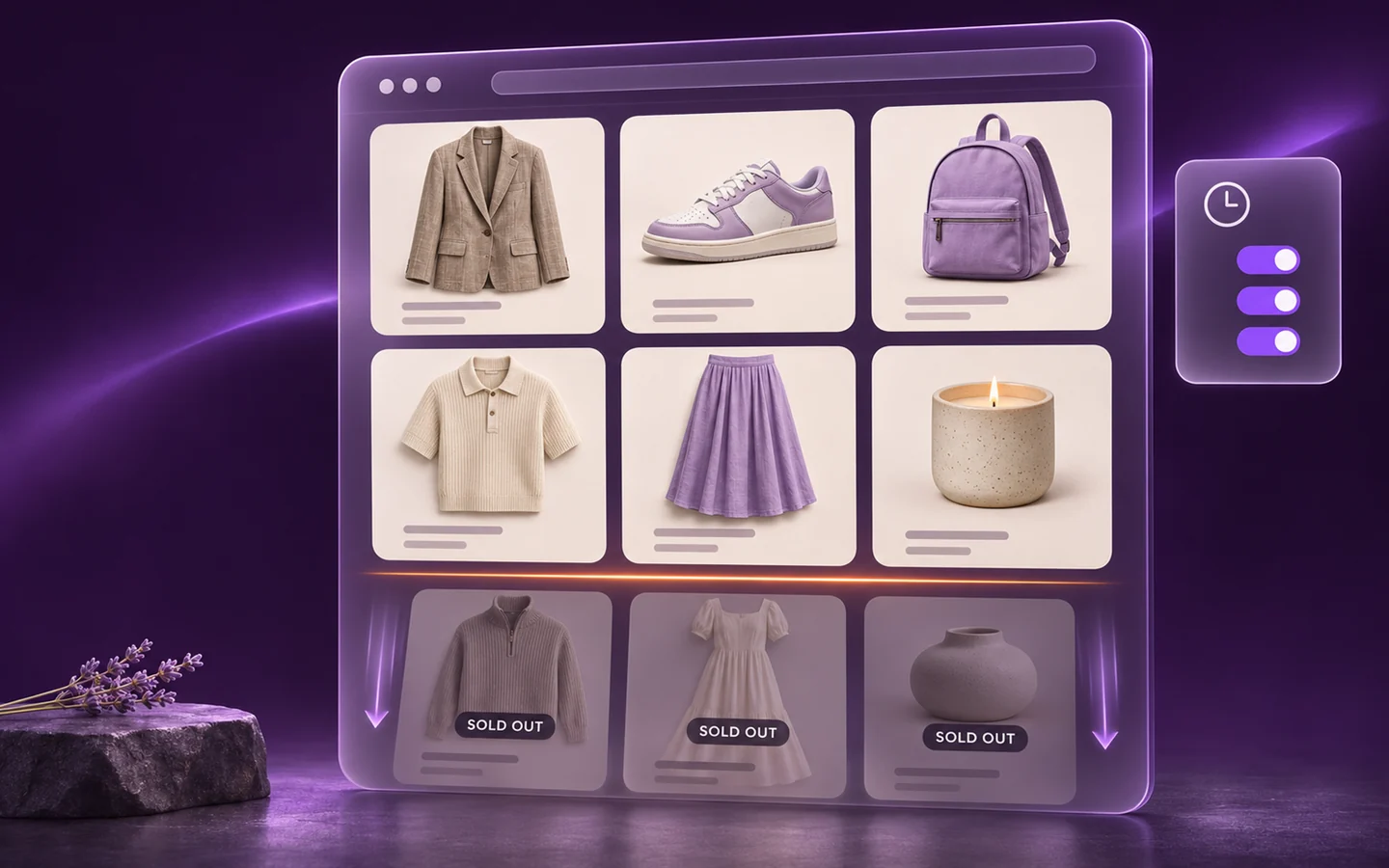
Shopify has no setting that moves sold-out products to the end of a collection. None of its built-in sort options looks at inventory, so a bestseller that sells out keeps its top slot with a “Sold out” badge. Here are the ways to fix it by hand in the Shopify admin, where each one breaks down, and how to automate it without adding a script to your theme.
Why Shopify keeps sold-out products at the top
Shopify’s collection sort menu offers most relevant, best selling, alphabetical, price, date created, and manual. None of them considers whether a product is in stock. Best selling makes the problem worse: Shopify ranks it on the all-time number of orders that include the product, so the product that just sold out is often the one with the most orders. It stays in position one.
That slot is the most valuable space on the page. Shoppers who land on the collection see a product they cannot buy, and many leave before they scroll. We covered the full cost in The Triple Loss of Sold-Out Collection Products. This guide is about the fix.
Method 1: Move sold-out products by hand
The manual answer works on any collection, with no app:
- In your Shopify admin, go to Products → Collections and open the collection.
- In the collection’s product list, change the sort to Manually.
- Find each sold-out product. Select it, open the Move menu, and choose To the end. You can also drag it, or move it to a specific position number.
- Check the storefront to confirm the new order.
This is fine for one small collection. It breaks down quickly:
- It freezes the whole collection. Once the sort is Manual, Shopify stops re-ranking anything. Your bestsellers no longer move up on their own.
- Restocks stay buried. When a product comes back in stock, it sits at the bottom until someone remembers to move it back.
- Stock changes faster than you do. A product can sell out an hour after your weekly pass and hold the top slot for six days.
Method 2: Hide sold-out products with a collection condition
On an automated collection, you can add the condition Inventory stock is greater than 0. Shopify then removes products from the collection when they sell out and adds them back when they restock.
That keeps the top rows clean, but it hides products instead of moving them down. Shoppers who come looking for a popular item cannot find it, cannot see that it exists, and cannot sign up for a back-in-stock alert. It also does nothing for products with only one or two sizes left, which still count as in stock. Storefront availability filters have a similar limit: they only help shoppers who think to use them.
Method 3: Theme scripts (and why to avoid them)
Some code snippets and apps reorder the grid in the shopper’s browser with JavaScript after the page loads. That costs you twice. The page loads in one order and then jumps to another, which shoppers notice and page-speed tools penalize as layout shift. And a script can usually only reorder the products on the current page, so a sold-out product on page one cannot trade places with an in-stock product on page two.
The better fix changes the order inside Shopify itself, so the theme receives the collection already sorted.
The automated way: SortWise
SortWise writes a native Shopify sort order, so there is no theme code and no storefront script. Setting it up takes a few clicks:
- Install SortWise from the Shopify App Store. The free plan covers up to 10 collections.
- Choose a collection and attach a sorting strategy, for example bestsellers first.
- Turn on push down out of stock in the strategy.
- Enable automated sorting. SortWise re-sorts the collection every hour.
From then on, a product that sells out drops to the bottom within the hour, and moves back up on its own when it restocks. The rest of the collection keeps its ranking, so you do not trade one problem for a frozen grid.
Go further than “in stock” or “sold out”
A product is not shoppable just because one variant is in stock. A jacket with only an XXS left looks available on the grid and disappoints almost everyone who clicks it. SortWise can also:
- Sort by variant availability, so products with broken size runs move down before they fully sell out.
- Push down backordered products and products with a specific tag, such as “discontinued”.
- Hide sold-out products from a collection when you would rather remove them than move them.
- Flag visibility waste in collection analytics: products holding top slots without earning clicks.
See all the stock controls on the inventory merchandising page.
The short version
- Shopify cannot push sold-out products down on its own.
- Manual moves work for a small catalog, but freeze the collection and bury restocks.
- A collection condition hides sold-out products instead of moving them.
- Avoid storefront scripts that reorder the grid after the page loads.
- Automate it with a native sort that runs every hour.
Install SortWise free on the Shopify App Store and your sold-out products will be out of the top rows within the hour.
Keep reading
All articles
How to Sort Shopify Collections by Profit Margin
Add cost per item, rank by margin by hand, or automate a sort that blends margin with recent sales and stock, then A/B test it. Read article
Why the Top 3 Rows of a Shopify Collection Make the Sale
Learn how product position, availability, demand, profit, and testing work together to build better Shopify collection pages. Read article